Managing Estimation Engines
Note: This functionality is only available in systems licensed for FULL mode.
 Use the Estimation button on the Admin menu to access options to manage estimation engines and rules. The CygNet Measurement system supports the configuration of multiple estimation engines and rules. Estimation engines define when and what types of data will be estimated, and estimation rules define how to perform those estimations to arrive at better data values. You can add, view or edit, or delete estimation engines and rules via this interface. Changes made to estimation engines and rules are historized in the measurement system.
Estimation is only performed at the station level; it is not meaningful to estimate a meter run.
Data will be estimated when any of the following is true.
- Data is missing - there are gaps in data that are not likely to be filled from the device.
- Data is late - data has not yet entered the system within a user-defined interval.
- Data is of insufficient quality - data has been received from the device but it is at or below a user-defined data quality threshold.
Each estimation engine can be configured to contain multiple estimation rules, so that different estimation handling routines can be performed in a user-defined order of precedence, given data constraints.
Missing data and low quality data is estimated as soon as the record enters the measurement system. Late data estimation must be initiated by executing the Estimate Station Data command.
You must have proper security authorization to perform these actions. See FMS Security (and ACCESS security event) for information about configuring security access to estimation engines and rules.
Managing Estimation Engines
Estimation Engines are configured via the Admin menu in FMS Explorer. Click Estimation on the Admin ribbon to access the Estimation Engines dialog box.
|
Estimation Engines |
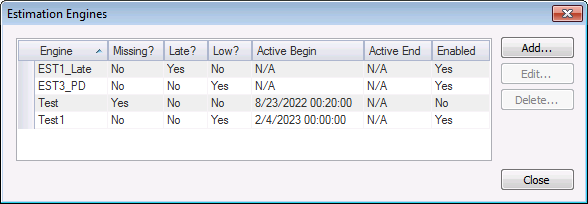
The Estimation Engines dialog box lists all defined estimation engines in the measurement system. Each row displays a configured estimation engine name, the type(s) of data to which it applies, the active begin and end times, and whether or not the engine is enabled. Results can be filtered by the values of any column. You can also access options to add, view or edit, or delete estimation engines and rules from this dialog box.
Creating Estimation Engines
Click Add to create a new estimation engine in your system. The Create New Estimation Engine dialog box will appear.
|
Create New Estimation Engine |
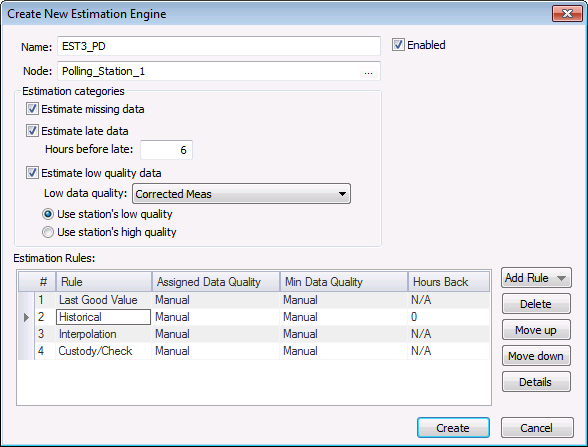
The properties for the Create New Estimation Engine dialog box are as described for the Estimation Engine Properties dialog box below, with the exception of the historization navigator.

Viewing or Editing Estimation Engines
Click an estimation engine name and then click Edit to view or modify the properties for an existing estimation engine, or to view its historized records. The Estimation Engine Properties dialog box will appear.
|
Estimation Engine Properties |
Estimation Engine Properties
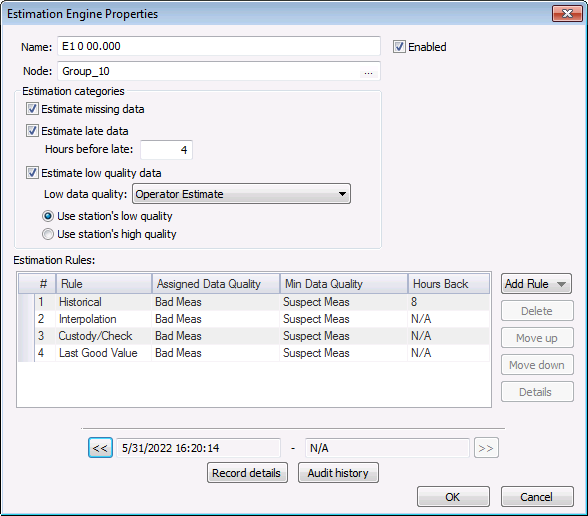
The properties for the Estimation Engine Properties dialog box are described below. This dialog box is similar to the Create New Estimation Engine dialog box above.
| Parameter | Description |
|---|---|
|
Name |
The name of the estimation engine. |
|
Enabled |
Click to select/clear whether or not to enable this estimation engine. |
|
Node |
The name of the Node to which this estimation engine applies. Click ... to select a Node. Note: When choosing a group Node, it must be a General Group Node of uniqueness type: Estimation Engine. |
| Estimation categories | |
|
Estimate missing data |
Select to estimate missing data when there are gaps in data that are not likely to be filled from the device. |
|
Estimate late data |
Select to estimate late data. Data is late if it has not entered the system within a user-defined interval. |
|
Hours before late |
Type the number of hours after which late data is considered "late" and will be estimated. |
|
Estimate low quality data |
Select to estimate or override data that is at or below a user-defined data quality threshold. |
|
Low data quality |
Select a low data quality threshold from the drop-down menu. Records with data quality at or below the selected setting will be estimated. The drop-down menu is populated with system data quality settings, as configured on the Data Quality Settings page of the Administrative Options dialog. See Configuring Data Quality Settings for more information. |
|
Use station's low quality |
Select to use the low end of the station's data quality range. For stations with multiple devices of varying data quality, the lowest device data quality value will be used to determine estimation for the station. |
|
Use station's high quality |
Select to use the high end of the station's data quality range. For stations with multiple devices of varying data quality, the highest device data quality value will be used to determine estimation for the station. |
| Estimation Rules | |
|
Estimation Rules |
A list of all the estimation rules that have been defined for this engine. Columns include the following; descriptions below.
|
|
# |
Estimation rules will be performed in the specified order of precedence. Click Move up and Move down to reorder the rules. |
|
Rule |
The type of estimation rule. See Add Rule below for a list of estimation rule types and their descriptions. |
|
Assigned Data Quality |
The data quality level that will be assigned to the resultant estimated record, once it is estimated by the selected estimation rule. Click the down arrow to select a Data Quality value from the drop-down menu. |
|
Min Data Quality |
The minimum data quality level for other records that are used as part of the estimation, for the selected estimation rule. Example If the data quality for the last known value is higher than the assigned data quality for the estimated record, use the higher data quality value. Click the down arrow to select a Data Quality value from the drop-down menu. |
|
Hours Back |
For historical rules, the number of hours into the past to use to estimate a historical average. |
|
Click Add Rule to add a new estimation rule to the estimation engine. Select a rule type from the drop-down menu. Note: For estimating non-contiguous data, the estimated value can only be determined from data that already exists in the database (records that have previously been saved). Options are as follows.
|
|
|
Delete |
Select any rule and then click Delete to delete the selected estimation rule. |
|
Move up / Move down |
Select any rule and then click Move up or Move down to change the rule execution order. |
|
Details |
Select any rule and then click Details to access the Record Details for the selected estimation rule. For new rules, record details can be accessed only after the rule has been saved. |
| Historization Navigator | |
|
Record details |
Where applicable, click Record details in the historization navigator to view sequential historized record details for the selected estimation engine. |
|
Audit history |
Where applicable, click Audit history in the historization navigator to view detailed history of audit trail data changes for the selected estimation engine. |
Deleting Estimation Engines
Use the Delete button to either delete an Estimation Engine from a point in time, or to completely purge an Estimation Engine from the system. You can only take this action for one estimation engine at a time.
Click an estimation engine name and then click Delete to delete or purge the selected estimation engine. The Delete Estimation Engine dialog box will appear.
|
Delete Estimation Engine |
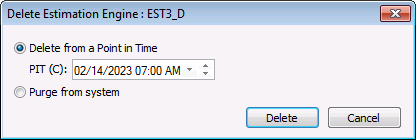
You will need to select whether to delete the estimation engine from a point in time, or to completely purge the estimation engine from the system. If you select to Delete from a Point in Time, also specify the PIT (C) using the date/time selector provided. See Using the Home Menu for more information about PIT.
- Delete from a Point in Time removes (effectively deactivates) the selected Estimation Engine record from a specified Point in Time, and historizes the change. The Estimation Engine still exists in the system, and its properties can still be edited. Selecting this option causes the action button at the bottom of the dialog box to read Delete.
- Purge from system removes the selected Estimation Engine and its data records from the system entirely. The Estimation Engine will no longer exist. Selecting this option causes the action button at the bottom of the dialog box to read Purge.
Note: Be certain of your selection, as there is NO "undo" for this action.
A message will appear asking you to confirm you wish to delete/purge the selected Estimation Engine from your system. Select Yes or No.
Historization Navigator
The Estimation Engine Properties dialog box contains a historization navigator. Use the historization navigator to access sequential historized records for the same estimation engine, where applicable.
|
Historization Navigator |

The following fields are displayed in the historization navigator.
| Field | Description |
|---|---|
|
<< |
Click << to navigate to the previous historized record, if applicable. |
|
[Begin date] |
Displays the effective begin date, in Contract time (C), of the historized record currently selected. |
|
[End date] |
Displays the effective end date, in Comntract time (C), of the historized record currently selected. |
|
>> |
Click >> to navigate to the next historized record, if applicable. |
|
Record details |
Use the << and >> navigation buttons to select a historized record date span, in Contract time (C), for which you want to view record details. Next, click Record details to view details of the record such as who made the change, the date and time it was made, and optionally the audit category and/or any comments entered regarding the change. See Viewing Record Details for more information. |
|
Audit history |
Click Audit history to view detailed history of audit trail value changes for the Node in its entirety. See Viewing Audit History for more information. |
Saving FMS Record Changes
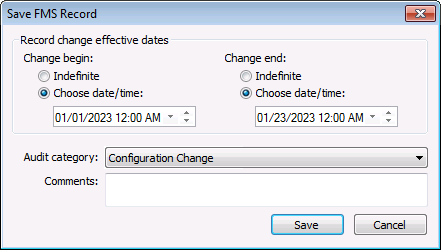
After creating or editing an Estimation Rule, you'll be asked to save your changes via the Save FMS Record dialog box. Configure the date and audit information requested to historize the changes in your system.
Specify the following parameters to describe the saved record.
|
Save FMS Record |
| Property | Description |
|---|---|
|
Change begin |
Set the effective date and time for the record change to begin. Options are as follows.
|
|
Change end |
Set the effective date and time for the record change to end. Options are as follows.
|
|
Audit category |
Select an appropriate Audit category from the drop-down menu. The audit category type for this kind of edit is Configuration Change. Audit categories are configured on the Admin menu. See Configuring Audit Categories for more information. |
|
Comments |
Type Comments regarding creation or modification of the rule or Node in the text box. Although comments are optional, they become part of the record and can be helpful when auditing or reviewing records. |

